Table of Contents
- Why Managing IT Infrastructure for Remote Teams Matters
- Step 1: Create an IT Infrastructure Checklist for Remote Teams
- Step 2: Implement Remote Workforce Cybersecurity Measures
- Step 3: Set Up Remote Device Management Systems
- Step 4: Establish Remote IT Support Processes
- Step 5: Plan for Scalability and Future Growth
- Common Mistakes to Avoid When Managing Remote IT Infrastructure
- Frequently Asked Questions
Last Updated: October 5, 2026
Why Managing IT Infrastructure for Remote Teams Matters
Managing IT infrastructure for remote teams is essential for business continuity. When your workforce operates across multiple locations, your IT systems must keep everyone connected, secure, and productive whilst maintaining compliance and scalability without an on-site IT department.
Remote infrastructure introduces complexity traditional office setups don’t face. Your team relies on cloud connectivity, VPNs, and distributed systems, so a single point of failure, a network outage, security breach, or unpatched device, can disrupt your entire organisation.
The businesses that thrive remotely aren’t the ones with the biggest budgets, they’re the ones with clear infrastructure strategies, proactive security, and support processes that scale with growth.
Step 1: Create an IT Infrastructure Checklist for Remote Teams
Building a remote IT infrastructure starts with understanding what you actually need. Most teams either over-invest in unnecessary tools or under-invest in critical systems, so a comprehensive checklist covers the essentials without unnecessary complexity.
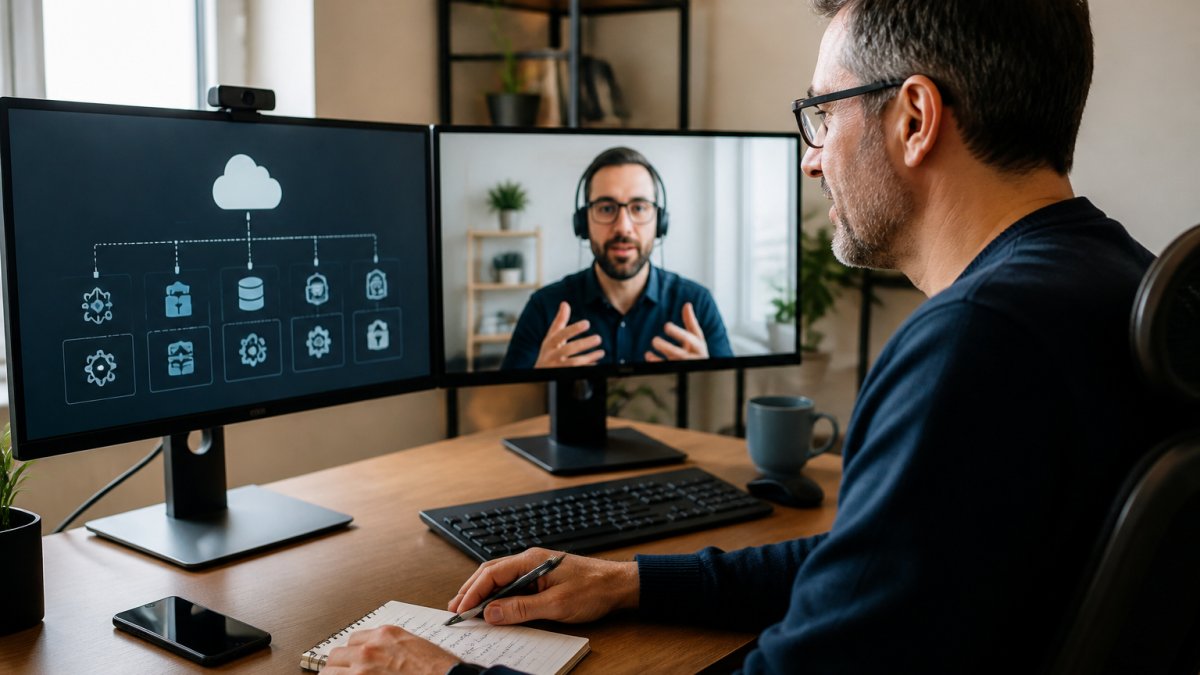
Your checklist should address three core areas: hardware specifications, connectivity requirements, and cloud service architecture. These form the foundation that everything else depends on.
Essential hardware and connectivity requirements
Remote work demands reliable hardware that handles consistent use outside the office, devices capable of running business applications, supporting video conferencing, and handling file transfers without lag or crashes.
Start with device specifications. Laptops should have at least 8GB RAM for most professional roles, 16GB for resource-intensive applications like design software or virtual machines.
Connectivity is non-negotiable. Each remote worker needs reliable broadband with minimum 10 Mbps download for basic tasks; video conferencing and file uploads demand 25 Mbps or higher.
Consider peripherals too. Webcams, microphones, and headsets belong in your hardware budget, poor audio damages professionalism and productivity. External monitors improve ergonomics and reduce eye strain.
Document these requirements clearly. When hiring new staff or replacing equipment, your checklist becomes a purchasing guide that prevents inconsistent setups.
Cloud services and data storage setup
Remote teams require cloud-based storage and collaboration tools. On-premises file servers don’t work across locations, you need simultaneous access, version control, and automatic backups.
Identify which cloud services your team actually uses. Most organisations need a document collaboration platform (Microsoft 365, Google Workspace), cloud storage (OneDrive, Google Drive), and communication tools (Teams, Slack, Zoom).
Establish clear data classification. Customer information, financial records, and intellectual property need stricter access controls than internal announcements.
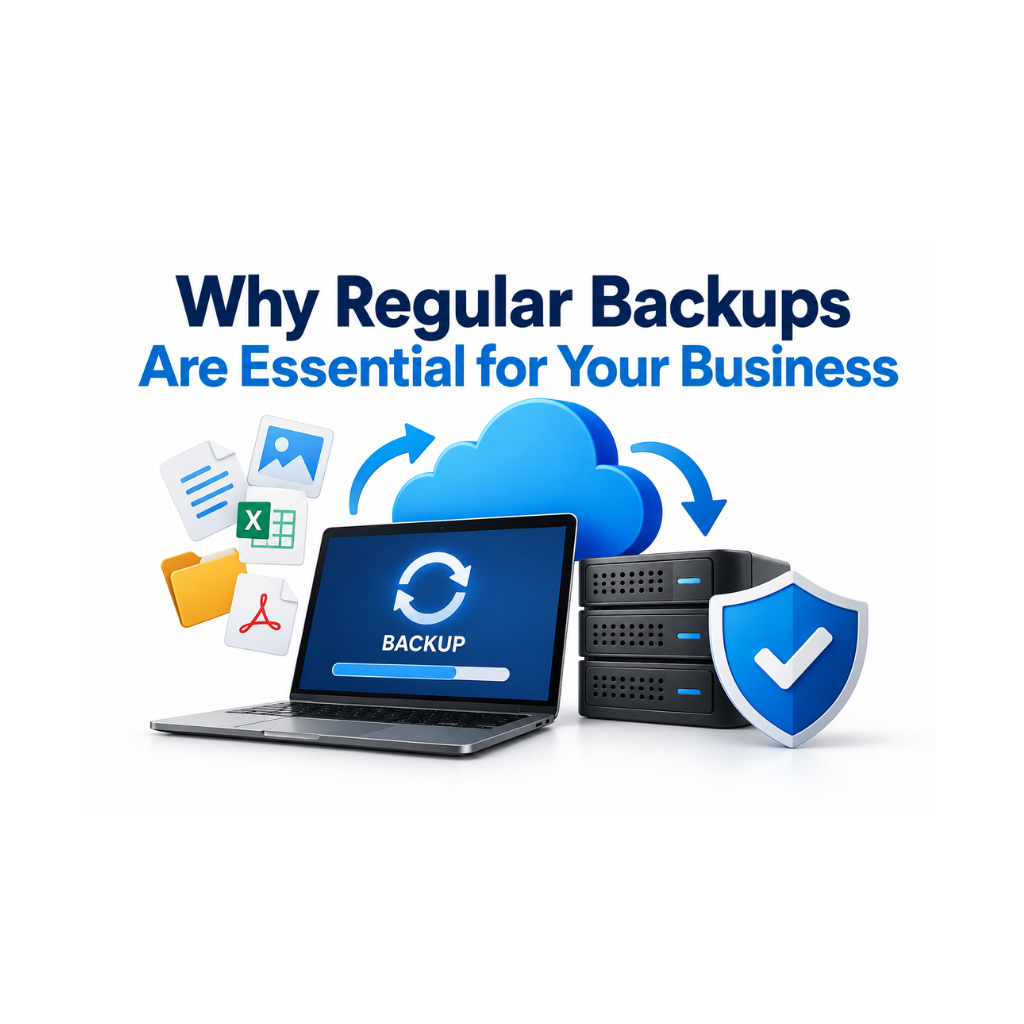
Backup strategy matters enormously. Cloud services provide redundancy, but you still need additional backups.
Document your cloud service architecture: which teams use which services, who has admin access, and how data flows between systems. This becomes invaluable when troubleshooting or onboarding new staff.
Step 2: Implement Remote Workforce Cybersecurity Measures
Security becomes exponentially more important when your team works remotely. Devices leave the office, connect to home networks, use public WiFi, and operate outside your direct supervision. Without proper controls, a single compromised device can expose your entire organisation’s data.
Remote security isn’t about restricting your team, it’s about protecting them. Proper measures prevent ransomware, data theft, and compliance violations that could devastate your business.
Multi-factor authentication and access controls
Multi-factor authentication (MFA) is the single most effective security control available, preventing unauthorised access even when passwords are compromised.
Implement MFA consistently across your organisation. Don’t make it optional, teams invariably skip optional security measures, and the small friction of a second factor prevents catastrophic account compromise.
Choose authentication methods carefully. Authenticator apps (Microsoft Authenticator, Google Authenticator) are more secure than SMS, which can be intercepted. Hardware security keys offer maximum protection but require budget.
Create clear access control policies. Not every team member needs access to every system. A marketing team member shouldn’t access financial records. A junior staff member shouldn’t have admin privileges.
Document who has access to what.
Data protection and compliance requirements
Your data protection obligations depend on your industry and the data you hold. If you process personal information, you must comply with the UK General Data Protection Regulation (GDPR).
Understand your regulatory obligations before designing your infrastructure. Don’t assume compliance, verify it. Penalties for non-compliance are substantial.
Implement encryption for data in transit and at rest. For data in transit, use HTTPS for web connections and VPNs for remote access.
Create a data retention policy covering customer data, email archives, and financial records. Longer retention increases security risk and storage costs, so document retention periods and enforce them through automation where possible.
Establish incident response procedures. Despite best efforts, breaches happen. Your team needs to know who to notify, what to preserve, and how to communicate with affected parties. Test your plan annually.
Step 3: Set Up Remote Device Management Systems
Devices spread across different locations become difficult to manage without proper systems. You can’t physically visit each employee’s laptop to install updates or check security settings. Device management systems automate these tasks and provide visibility into your infrastructure.
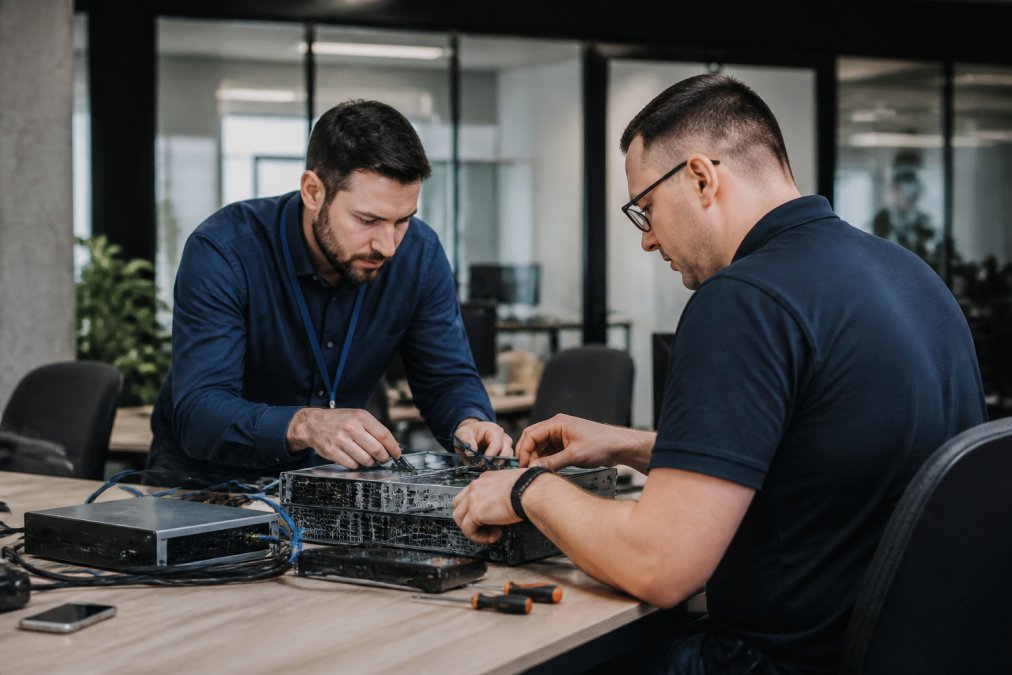
Mobile device and laptop monitoring allows centralised oversight of all devices. You can see which devices are connected, their security status, installed software versions, and whether security patches are current. This visibility prevents the common scenario where a team member’s device goes months without security updates because no one knew it existed.
Mobile device and laptop monitoring
Mobile Device Management (MDM) systems provide centralised control over smartphones and tablets, letting you enforce security policies: requiring screen locks, preventing app installation from untrusted sources, and remotely wiping lost or stolen devices.
For laptops, use Endpoint Detection and Response (EDR) or Mobile Device Management solutions.
Configure policies that enforce consistent security across all devices. For example, require Windows updates to be installed within 30 days of release. Require antivirus software to be active and current. Require screen locks with passwords of minimum length.
Monitor device health remotely. Your IT support team should be able to see when a device has issues before the user reports problems. This proactive approach prevents productivity loss and catches security problems early.
Software updates and patch management
Software vulnerabilities are discovered constantly. Vendors release security patches to fix them. Devices running outdated software are vulnerable to known attacks.
Schedule a Free Consultation →
Create a patch management schedule. Most organisations apply patches monthly, aligning with vendor release cycles. Windows updates typically release on the second Tuesday of each month.
Test patches before deploying organisation-wide, a patch that breaks critical software is worse than the vulnerability it fixes. Test on a small group first, confirm no conflicts, then roll out to everyone else.
Automate patch deployment where possible. Manual patching is unreliable, devices get missed, patches get forgotten. Automation ensures consistency.
Track patch compliance. Know which devices have which patches installed. Identify devices that haven’t received recent updates and investigate why. Device management systems provide this visibility automatically.
Step 4: Establish Remote IT Support Processes
Remote teams need support processes that work without face-to-face interaction. Your IT support must be responsive, efficient, and capable of resolving problems across different locations, poor support creates frustration, reduces productivity, and makes staff feel unsupported.
Help desk ticketing and response times
Implement a ticketing system where team members can request IT support. This creates a record of all requests, prevents issues from being forgotten, and lets you track support metrics.
Define clear response time targets. A critical issue preventing someone from working needs faster response than a minor preference question.
Provide multiple contact methods. Some team members prefer email, others prefer chat. A ticketing system should accept requests via email, web portal, and chat interface.
Escalation procedures matter when initial support can’t resolve issues. Define who handles escalations and how quickly. A team member shouldn’t wait days for a response to a critical problem.
Track support metrics. How many tickets are resolved on first contact? What’s average resolution time? Which systems generate the most support requests?
Proactive monitoring and preventative maintenance
Reactive support, waiting for problems to occur, is expensive and disruptive. Proactive monitoring identifies problems before they affect your team. Use monitoring tools that track system health continuously.
Monitor critical infrastructure: email servers, cloud services, VPN connectivity, and network performance. Set up alerts when metrics fall outside normal ranges.
Perform regular maintenance. Schedule updates, clear out old data, and verify backups. Maintenance windows should occur outside working hours when possible. Communicate maintenance schedules to your team in advance.
Conduct regular security audits. Review access logs, check for unauthorised accounts, verify that security policies are being enforced.
Document common problems and solutions. Your first-line support team will encounter the same issues repeatedly. A knowledge base of solutions allows faster resolution and reduces escalations. Include screenshots, step-by-step instructions, and common workarounds.
Step 5: Plan for Scalability and Future Growth
Your IT infrastructure must accommodate business growth without major overhauls. Designing for scalability from the start prevents expensive rework later.
Evaluate each component for growth capacity. Your cloud storage: how much will you need in 3 years? Your email system: can it handle 50% more users?
Choose cloud-based solutions where possible. Cloud services scale automatically, you don’t need to purchase new servers. As your team grows, you simply add more users to your cloud subscriptions.
Plan your network infrastructure for growth. If you’re currently using a small office network, will it support 100 remote workers? Consider bandwidth, security appliances, and connectivity redundancy.
Document your infrastructure decisions. Record why you chose specific tools, what problems they solve, and what constraints they have. This documentation helps future decisions.
Common Mistakes to Avoid When Managing Remote IT Infrastructure
Organisations frequently make preventable mistakes when managing IT infrastructure for remote teams. Learning from these errors helps you avoid costly problems.
Underestimating security needs is a critical mistake. Remote work increases security risk, yet many organisations cut security budgets when shifting remote.
Deploying infrastructure without testing is another common error.
Neglecting documentation creates chaos as your team grows.
Ignoring user feedback prevents you from identifying real problems. Your team uses these systems daily and notices issues IT staff might miss.
Assuming one-time setup is sufficient is dangerous.
Managing IT infrastructure for remote teams requires systematic planning, strong security, and ongoing support.
At KeyInsite Consultancy, we’ve guided SMEs through exactly this journey. Our 25 years of experience and same-day support availability mean you’re not navigating these decisions alone.
If your current remote infrastructure feels fragile or you’re uncertain whether you’re following best practices, we offer free consultations to assess your situation. Book a free consultation with our team and discover how proper infrastructure management transforms your operational efficiency and security posture.
Frequently Asked Questions
What IT infrastructure does a remote team actually need?
Remote teams need reliable internet connectivity, secure cloud storage, unified communication tools, and device management systems. Essential hardware includes laptops or desktops, webcams, and headsets. Beyond equipment, you need a virtual private network (VPN) for secure access to company systems, email systems, and collaboration platforms. The specific setup depends on your team size, industry, and compliance requirements. For healthcare or legal firms handling sensitive data, additional security layers are essential.
How do I secure IT systems for remote workers?
Start with multi-factor authentication on all accounts and enforce strong password policies. Require VPN use for accessing company systems and implement endpoint protection software on all devices. Regular security training helps staff recognise phishing attempts. Use role-based access controls so employees only access data they need. For regulated industries like healthcare, ensure your security approach meets compliance standards. Regular security audits identify vulnerabilities before they become problems.
What’s the difference between managing IT infrastructure for remote teams versus in-office teams?
Remote teams require stronger security controls because devices operate outside your physical network. You cannot visually monitor equipment or enforce hardware standards as easily. Remote setups demand better automation for software updates, patch management, and device monitoring. Internet connectivity becomes critical rather than optional. Support processes must work asynchronously across different time zones or locations. Scalability also matters more, remote infrastructure grows with headcount without needing physical office space.
How often should we review and update our remote IT infrastructure?
Review your IT infrastructure quarterly or whenever your team grows significantly. Monthly security audits identify emerging threats. Software updates and patches should be deployed as they become available, ideally automated. Annual compliance checks ensure you meet regulatory requirements, especially if you handle sensitive data. As your business scales, reassess whether your current tools and systems can support growth without major overhaul. Regular reviews prevent costly system failures and keep security current.